Every Deevid AI feature, with a real prompt you can try.
Nine capabilities, 30 days of testing, 120+ clips. Each section below includes what it does, where it wins, a real-world use case, and a working example prompt you can paste into your own account.
Text-to-video
Write a prompt, get a clip. The core capability — and where Deevid's modeling advantage shows up most.
What it does
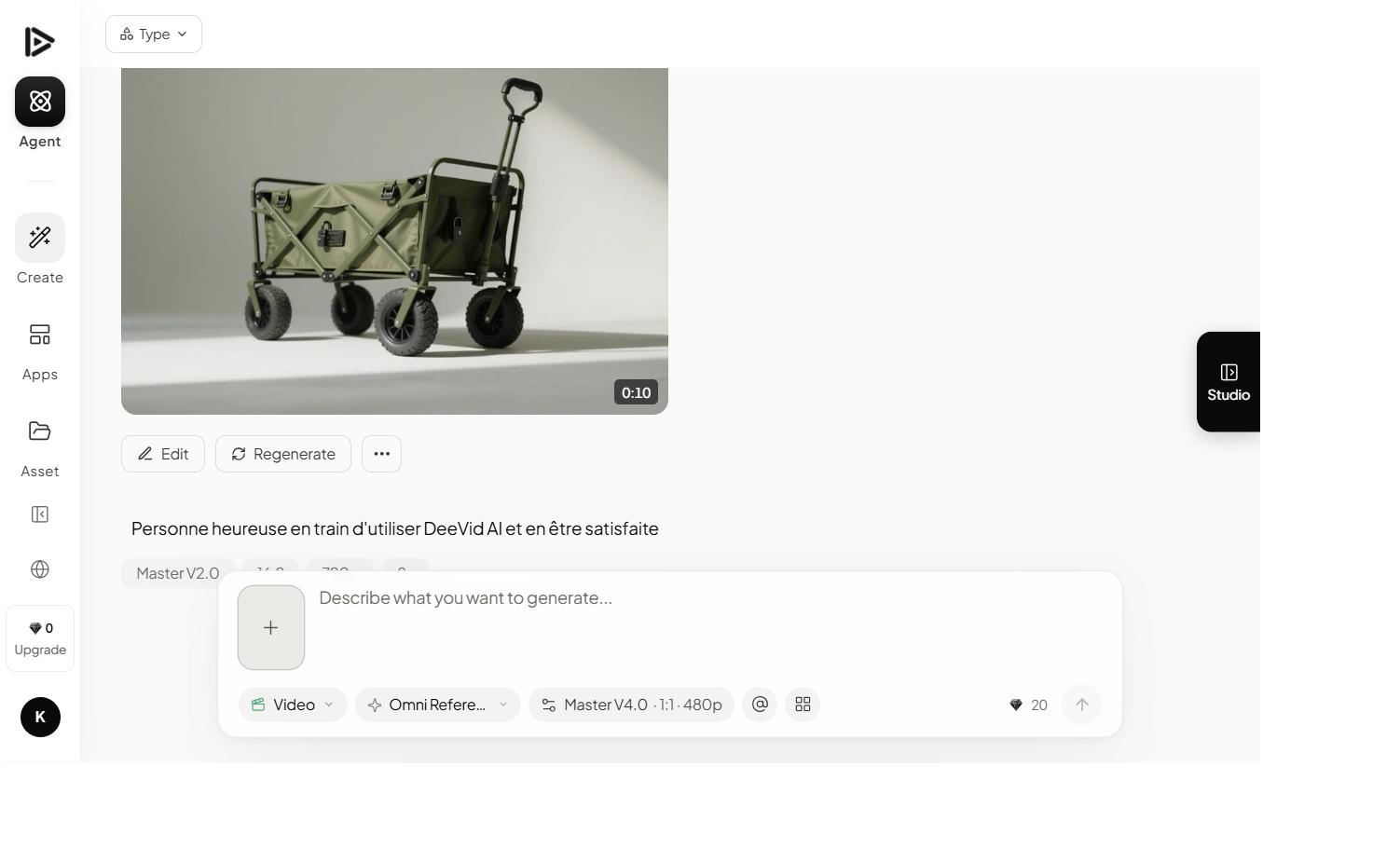
Deevid generates clips up to 20 seconds at 1080p from a written prompt. Motion coherence is the standout: subjects keep their shape through camera moves, and objects retain consistent physics across the clip. In our 120-clip test, Deevid produced a usable first render ~72% of the time — significantly above the ~55% we saw from competitors on the same prompt brief.
Real-world use case
You're producing a 20-second brand intro for a social launch. Instead of shooting B-roll, you script the concept and iterate prompts until the mood lands.
Example prompt
A close-up of an artisan's hands shaping clay on a spinning wheel, warm afternoon light through a studio window, slow dolly-in, shallow depth of field, cinematic 35mm, grainy texture, 20 seconds.
Image-to-video
Upload a still, describe the motion, get a living shot — best-in-class for product animation.
What it does
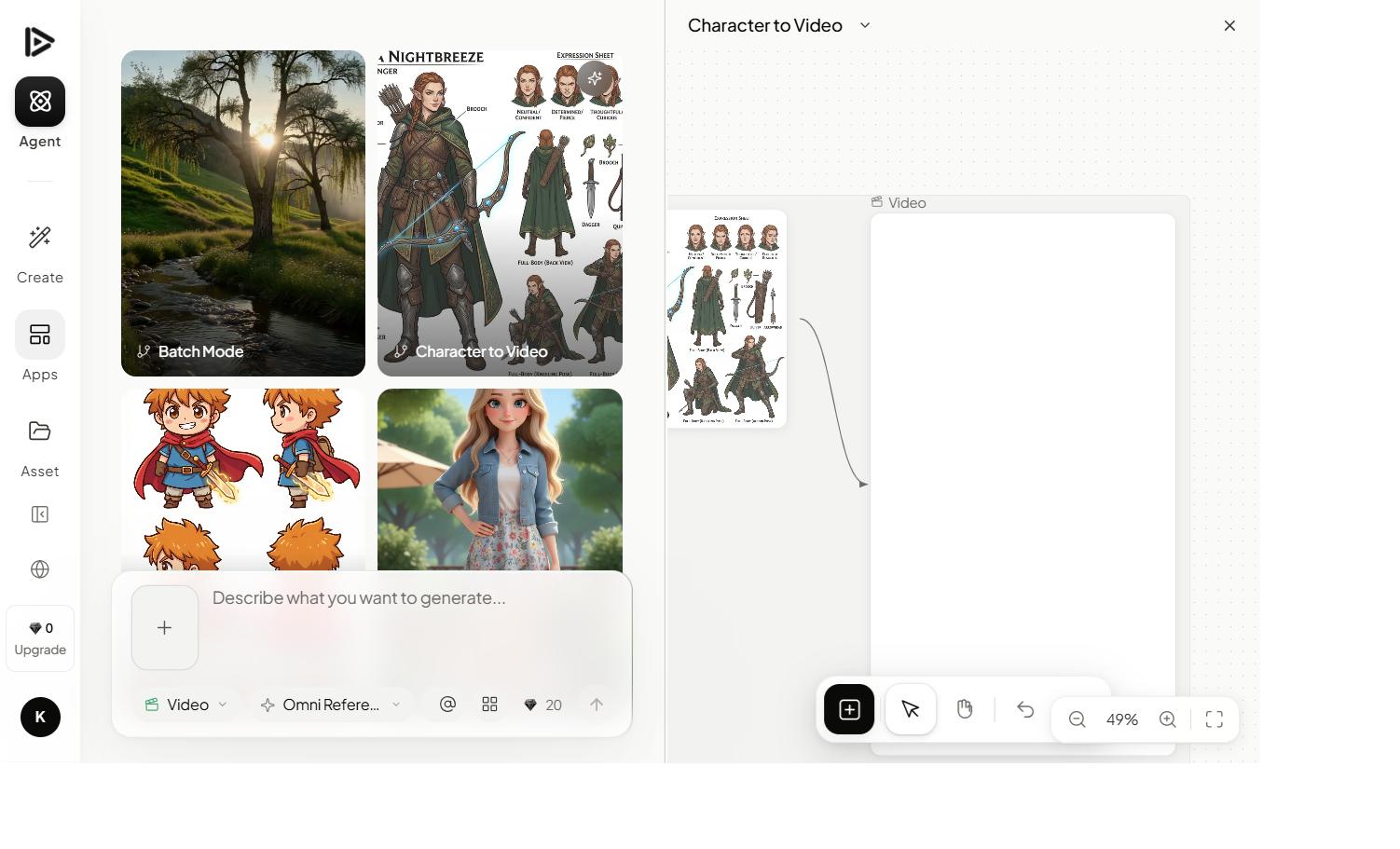
Image-to-video is Deevid's most immediately useful feature for creators with existing assets. Upload a product photo, portrait, or illustration, then describe the motion you want. The model preserves the source style with impressive fidelity, which is where Runway and Pika still struggle. In our testing, the first render was client-ready ~64% of the time for product shots.
Real-world use case
An ecommerce team turns existing product photography into animated hero videos for their homepage — without reshooting or licensing stock footage.
Example prompt
[uploaded product photo] — slow 360° turntable rotation, subtle camera push-in at the end, soft diffused lighting pulses gently, maintain exact color and material of source image, 8 seconds.
Character consistency
Lock a subject across multiple generations — the single feature we'd pay Pro prices for on its own.
What it does
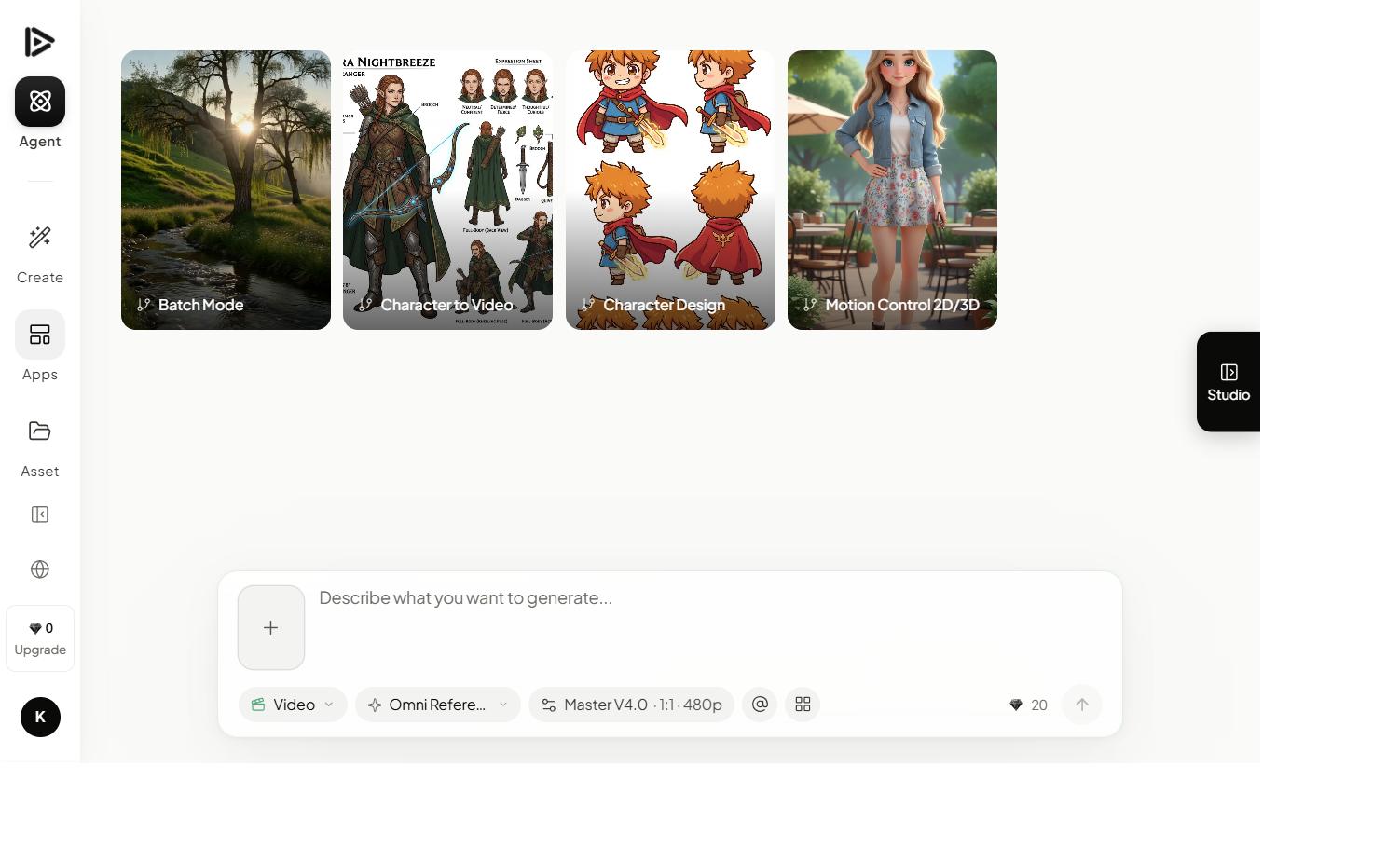
This is where Deevid pulls ahead of everything else. Save a character reference — person, product, mascot — and Deevid locks facial geometry, clothing, and proportions across separate generations. We ran the same protagonist across a 6-shot narrative sequence and got identifiable consistency in 5 of 6 shots on the first pass. Competitors generally produced a recognizably different person by shot 3.
Real-world use case
You're storyboarding a narrative short. You can now actually tell a story across multiple cuts instead of concealing the fact that every cut has a new character.
Example prompt
[saved character: 'Mira, urban explorer'] — Mira opening a weathered wooden door at dusk, rain on her jacket, low-angle shot, lens flare, motion-blurred background, 6 seconds.
Style transfer
Apply a visual language across an entire project — 40+ curated styles and custom uploads.
What it does
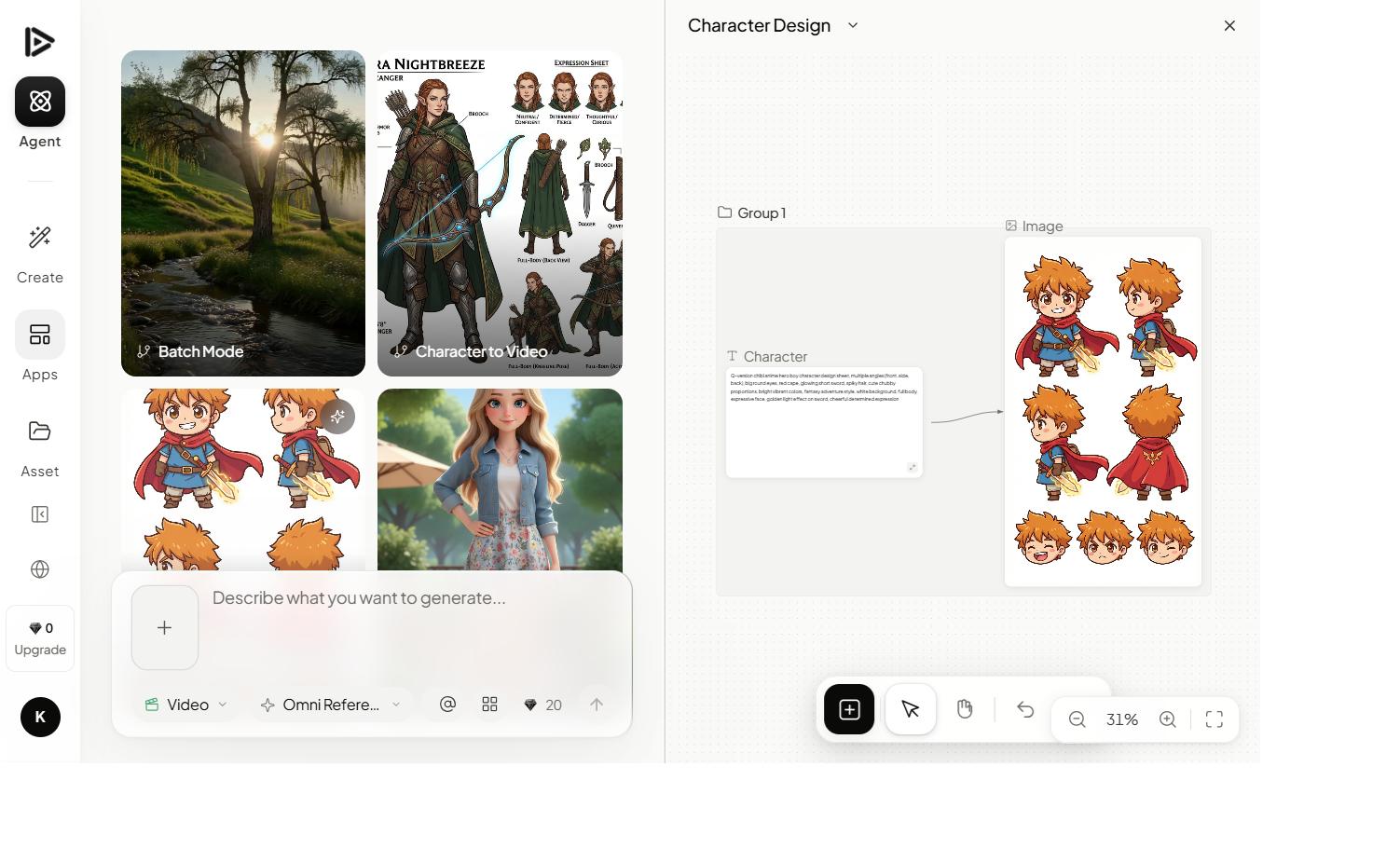
Pick from 40+ curated presets (claymation, Wes Anderson, 8mm film, anime, cyberpunk, etc.) or upload your own reference image to define a custom style. The style holds across every generation in the project — which matters more than it sounds when you're producing a 6-clip sequence that needs to feel like one piece of content.
Real-world use case
A brand agency applies a single custom style (from the client's print campaign) across a 12-clip social roll-out so every asset reads as one campaign.
Example prompt
[style: custom upload — vintage 8mm home movie] — family walking along a coastal cliff, hand-held camera, sun flare, slight gate weave, no modern elements, 10 seconds.
4K export
Native 4K on Pro and above — not upscaled from 1080p, which is a distinction that matters on large screens.
What it does
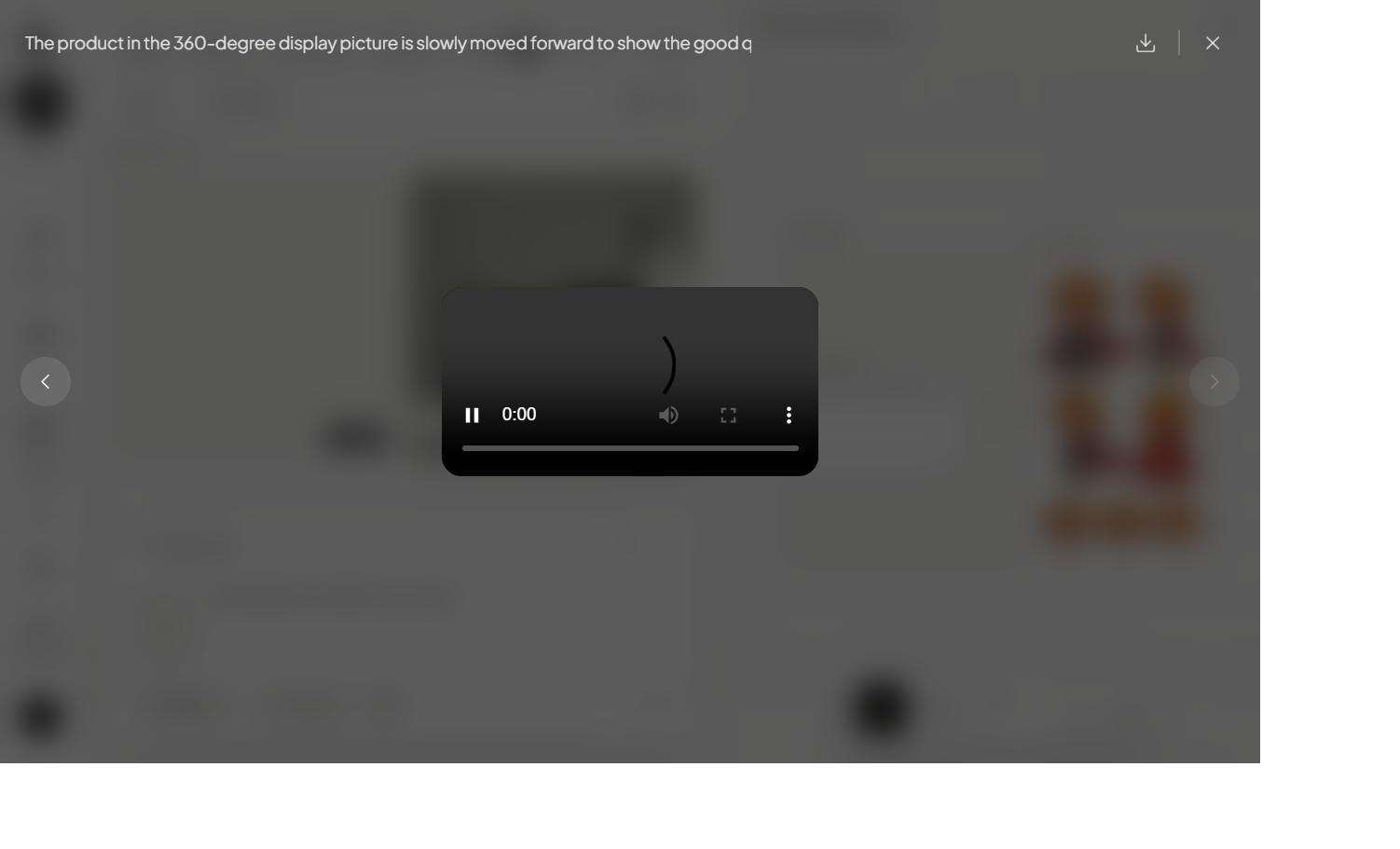
Many competitors advertise 4K via an upscaler applied at export. Deevid's Pro and Studio plans render natively at 4K, which shows up in edge detail, fine textures, and motion artifacts. On a 65" display, the difference is obvious; on a phone, less so. If you're producing for broadcast, out-of-home, or retail displays, this is the feature that justifies the Pro price.
Real-world use case
You're delivering video for in-store digital signage. Upscaled 1080p looks soft on anything over 42"; native 4K is the only safe delivery format.
Example prompt
[export settings: 4K native, 30fps, H.265, HDR off] — same prompt as any other project, render time adds ~15–20 seconds compared to 1080p.
Commercial license
Every paid plan — yes, even Starter — includes a full commercial-use license. Rare in this category.
What it does
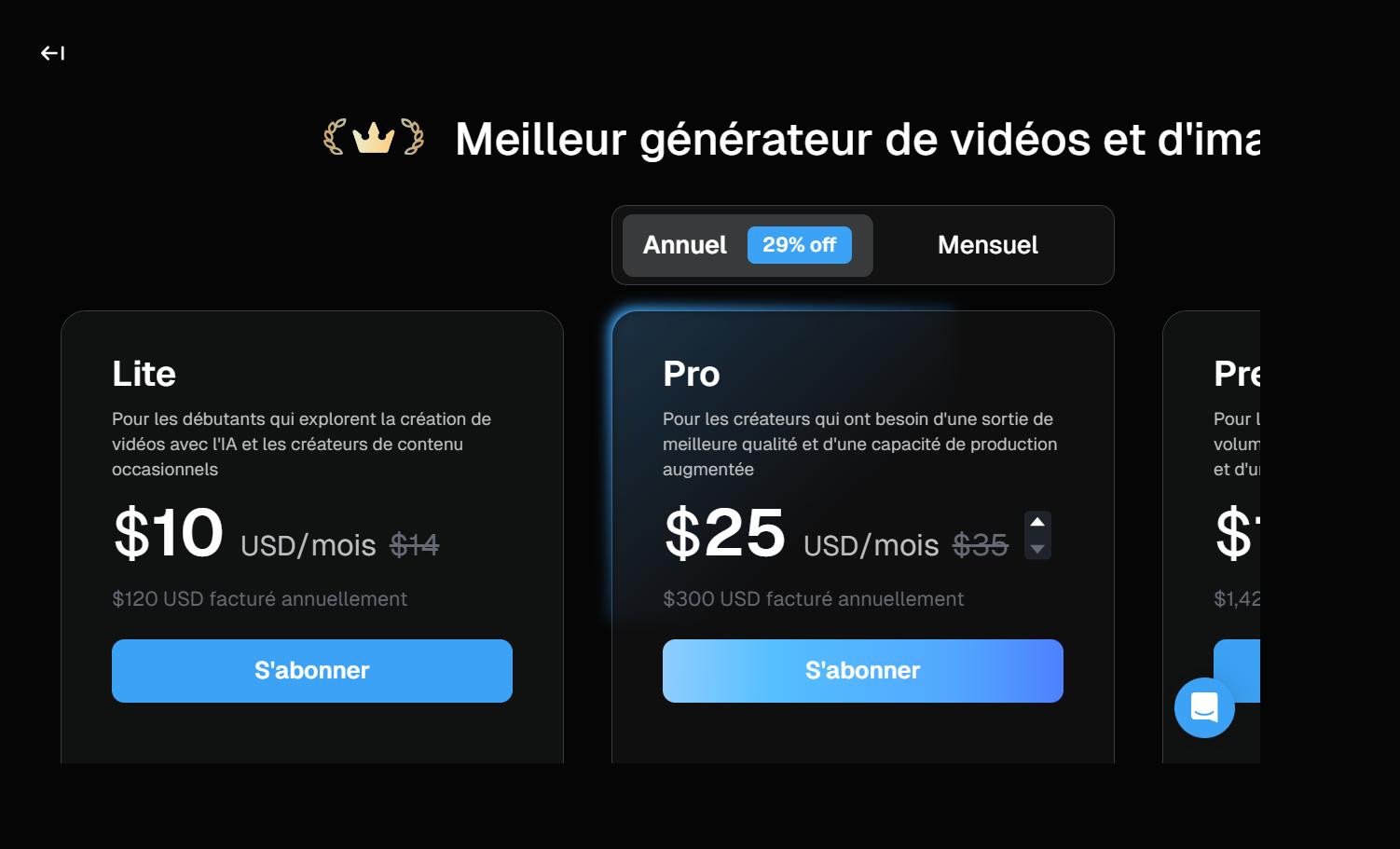
Most competitors lock commercial use behind their Pro tier ($30+/mo). Deevid's Starter plan at $19/mo includes full commercial use for all content you generate. No additional attribution. No watermark. No client-specific licensing exceptions. This alone makes Starter a legitimate plan for freelancers who bill work, not a crippled demo.
Real-world use case
A freelance video editor can take on paid client work using Starter at $19/mo without worrying about licensing complications — a workflow that would cost $30+/mo on competitor platforms.
Example prompt
N/A — included automatically on all paid tiers.
Timeline editor
Stitch, trim, and re-prompt clips inline — 80% of the editing job done without leaving the tool.
What it does
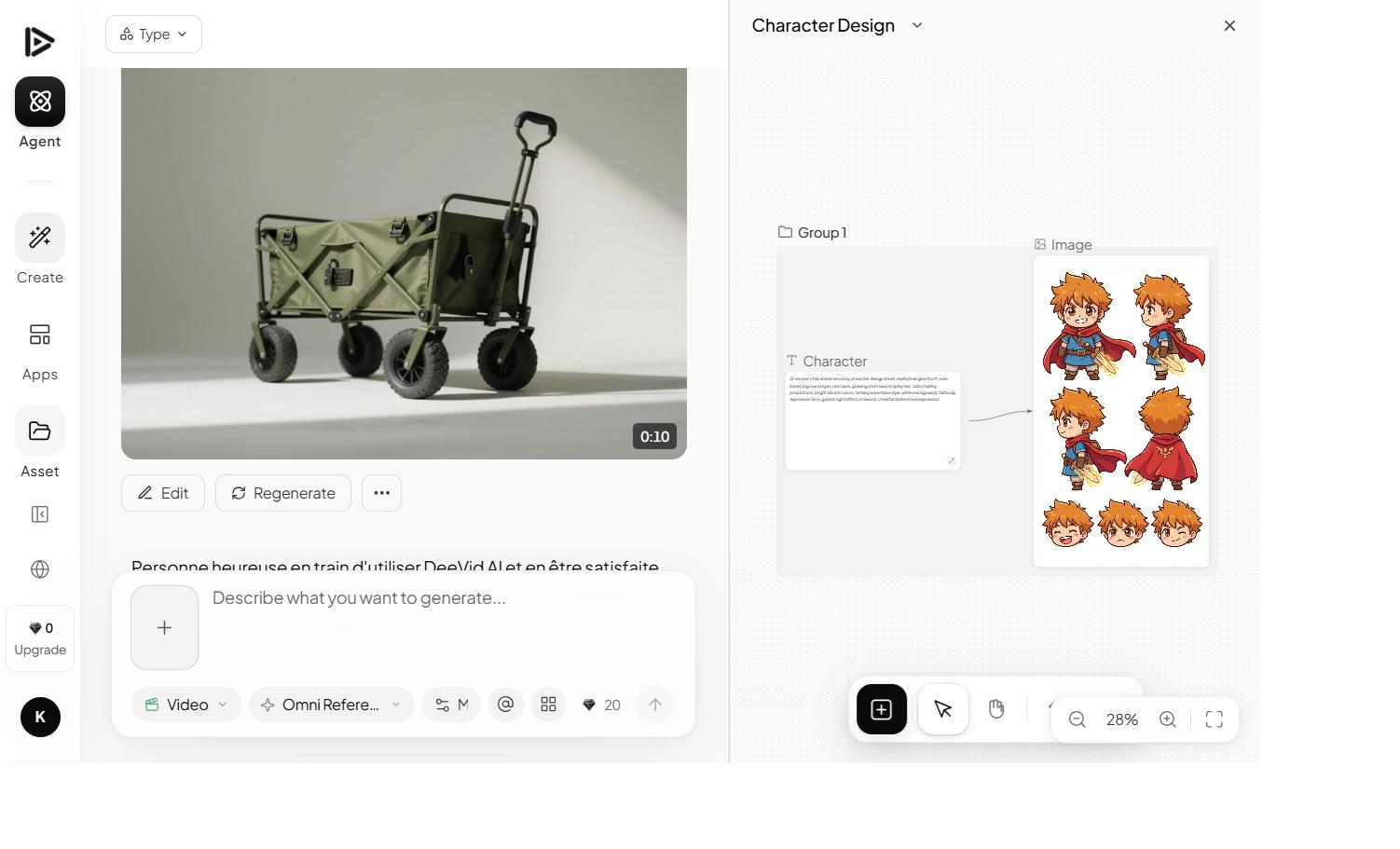
The timeline editor isn't trying to replace Premiere or CapCut. What it does well: stitch multiple Deevid clips into a sequence, trim and reorder without a separate tool, and re-prompt any single clip if it's not landing — without losing the rest of your edit. For most AI-first content, you never open another app.
Real-world use case
Producing 6 short clips for a social sequence — all generation, trimming, ordering, and delivery happens inside Deevid.
Example prompt
N/A — the timeline UI is drag-and-drop. Right-click any clip and pick 'Re-prompt with changes' to iterate without breaking your edit.
Team workspaces
Shared prompt libraries, brand kits, and asset folders. Solid for small creative teams, workable for larger ones.
What it does
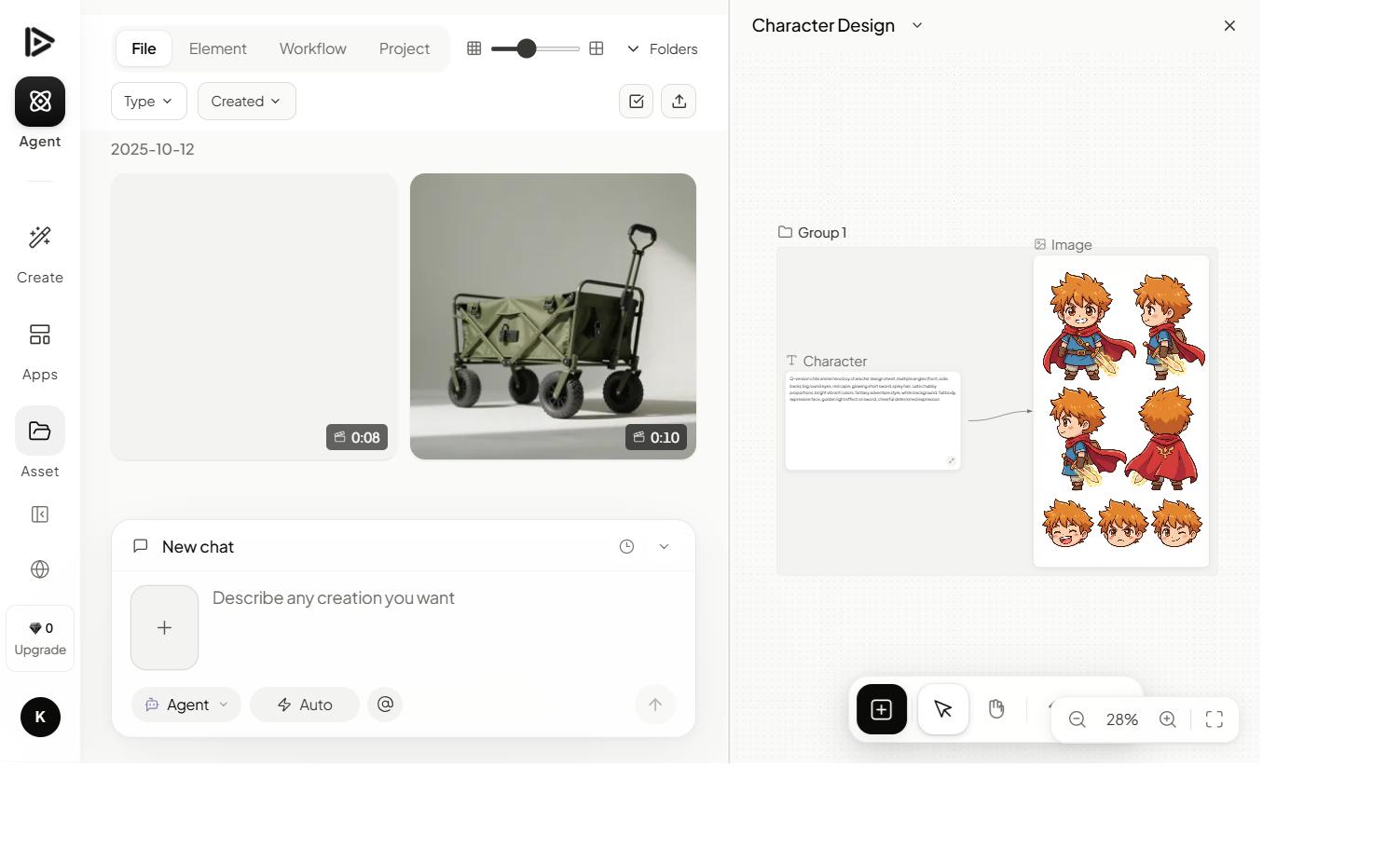
Pro supports up to 3 team seats; Studio supports 10 with SSO. Workspaces share prompt libraries (read/write permissions per member), brand kits (lock colors, fonts, styles across all generations), and asset folders. Activity log is baked in on Studio — useful for agencies tracking work by account.
Real-world use case
A 3-person boutique agency locks brand assets in a shared kit, so any team member's generations pull from the same reference set without needing hand-off briefings.
Example prompt
N/A — brand kit and prompt library are configured in Settings → Workspace. Any prompt run in the workspace pulls from these defaults unless explicitly overridden.
Prompt enhancer
Rewrites weak prompts into production-grade inputs — saves measurable time once you learn to trust it.
What it does
Type a short prompt, hit Enhance, get a full production prompt with subject/action/setting/mood/camera/lens/motion fleshed out. The enhancer is good — not perfect. It'll occasionally over-prescribe lighting or add a lens spec you didn't want. Treat it as a starting point, not a final answer. For beginners, it halves the time to a usable first render.
Real-world use case
A content marketer without a cinematography background produces consistently good output by writing bare-bones prompts and letting the enhancer add the production grammar.
Example prompt
Input: 'a coffee shop at sunrise'.
Enhanced: 'A cozy coffee shop interior at sunrise, warm golden light streaming through large windows, steam rising from a single cup on a wooden table, shallow depth of field, slow dolly-in, 35mm lens, soft ambient sound, 10 seconds.'
Nine features, one tool.
Most creators end up using three or four of these regularly — which is why our Pro recommendation holds. Start the 3-day trial and find your core three.
Start your 3-day trial →