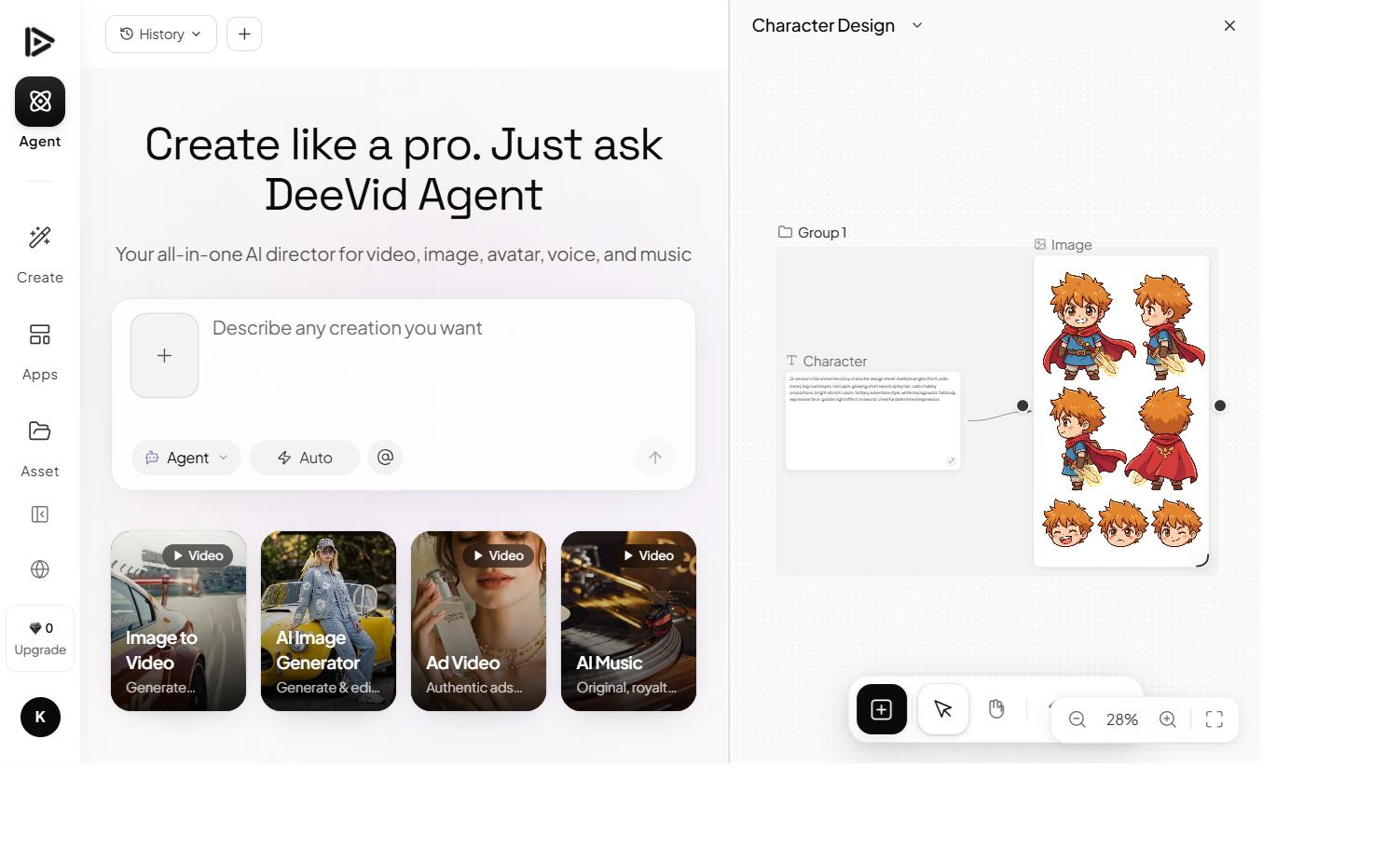
Character consistency is the single feature that took Deevid from “fun to play with” to “actually capable of shipping narrative work.” It’s also the feature that most new users struggle with, because the documentation frames it as a simple toggle — and in practice, it’s a workflow.
This tutorial is the workflow. It’s the exact sequence we use to lock a character across a six-shot narrative sequence with the character appearing recognizably the same in at least five of six shots on the first pass.
What character consistency actually is in Deevid
Character consistency in Deevid AI is built around a character reference: a saved visual identity — name, features, clothing, style — that you can reference in prompts. When a prompt references a saved character, Deevid biases the generation toward preserving that identity across seeds.
Two important caveats before we start:
- Character consistency is not 100%. Expect recognizable consistency in 5 of 6 shots, not 6 of 6.
- It works best for front-facing, well-lit close-to-mid shots. Extreme angles and distant figures stretch the feature’s limits.
Step 1: Create a clean character reference
Character references are built from one to three source images. The quality of your references determines everything that follows — so take the time to get them right.
What a good reference image contains:
- A clear, well-lit frontal or three-quarter view of the face
- Consistent clothing and hairstyle (this will be locked across generations)
- A neutral or simple background (complex backgrounds confuse the reference)
- Roughly the lighting conditions you’ll use in your narrative (more on this in a moment)
What a bad reference image contains:
- Multiple people in the same frame
- Heavy shadows obscuring half the face
- Dramatic lenses (fisheye, extreme telephoto) that distort geometry
- Conflicting styles between multiple reference images
Upload your references in Characters → New character. Give the character a meaningful name — Mira (urban explorer), not character1. You’ll reference this name by text in future prompts.
The reference-lighting trick: if you know all your narrative shots will be in warm afternoon light, use reference images that match that lighting. Deevid carries lighting context from the reference, and matching the reference to your target lighting improves consistency by a surprising amount.
Step 2: Lock clothing and props separately
A second step most users skip. After creating the character, open the character settings and fill in the Fixed attributes fields:
- Hair: short, long, color, texture, unusual features.
- Clothing: specific garments, colors, materials.
- Visible props: glasses, bag, watch, scar, jewelry.
Deevid treats these as strong biases on every generation that references the character. Without them, you’ll often get the right face in the wrong outfit — especially in wide shots where the clothing is more visible than the face.
Step 3: Plan your sequence before you prompt
Do not attempt to generate six shots in a row without a plan. That path ends with three recognizable shots and three that don’t match.
Instead, write a shot list before you open a generation window. For each shot, note:
- Shot size: wide, mid, close, extreme close.
- Camera angle: eye-level, low, high, three-quarter.
- Lighting: should match across the sequence unless you have a reason to change it.
- Action: what the character is doing in this specific shot.
- Continuity link: how this shot connects to the previous (gaze direction, position, prop in hand).
A six-shot example sequence for our character “Mira”:
| Shot | Size | Angle | Lighting | Action |
|---|---|---|---|---|
| 1 | Wide | Low | Dusk, warm rim | Mira approaches a weathered door |
| 2 | Mid | Eye-level | Dusk, warm rim | Mira reaches for the door handle |
| 3 | ECU | Eye-level | Dusk, warm rim | Mira’s hand on the handle |
| 4 | Mid | Reverse | Interior, warm practical | Mira steps inside |
| 5 | Wide | Eye-level | Interior, warm practical | Mira surveys the room |
| 6 | Close | Three-quarter | Interior, warm practical | Mira sees something off-screen, reacts |
Notice the lighting changes between shots 3 and 4 — that’s intentional (exterior to interior). Everything else stays consistent.
Step 4: Generate shots one at a time, in order
Do not parallel-generate. Generate shot 1 to your satisfaction, pick the best of three variations, then move to shot 2.
Why sequential matters: you can feed the best frame from a previous shot into the next shot as a reference anchor (using image-to-video), which dramatically improves continuity between shots.
Your prompt pattern for shot 1:
[character: Mira (urban explorer)] — Mira approaches a weathered wooden door at dusk, wide low-angle shot, warm rim light from the sunset, hand-held feel, 5 seconds.
Generate 3 variations. Pick the one where Mira looks most “on-model” — matches the reference closely.
Step 5: Carry the anchor frame into each subsequent shot
For shots 2 onward, combine the character reference with an anchor frame from the previous shot using image-to-video mode:
[character: Mira (urban explorer)] [anchor frame: shot 1, final frame] — Mira reaches for the door handle, mid shot at eye-level, warm dusk rim light continues, 5 seconds.
The anchor frame pins wardrobe, lighting, and pose continuity. The character reference pins facial identity. Together they get you roughly 85% of the way to pro-grade continuity.
Step 6: Accept that one shot will drift
In a six-shot sequence you will almost always get one shot that doesn’t match the others. Usually it’s an extreme close-up (hard for the reference to hit) or a profile shot (the reference is optimized for frontal views).
Your options in order of preference:
- Re-generate that shot 5–10 more times until one matches. Usually works.
- Swap it for a different shot that preserves the narrative beat with a different angle. If shot 3 was supposed to be an ECU of the hand, maybe it becomes an insert of the door handle instead.
- Edit around it in post. A quick jump cut to a different shot can hide a continuity break entirely.
Do not spend an hour trying to force a single shot to match. The 85% you get on the first pass is the realistic ceiling.
Common failure patterns
Three ways people lose character consistency, and how to fix each.
Failure 1: The face stays the same but the clothing drifts. You didn’t fill in the Fixed Attributes fields. Add the clothing specifics there, re-generate the drifting shots.
Failure 2: The face changes between close-ups and wide shots. Your reference images are all close-ups. Deevid has no context for how your character looks at a distance. Add a mid-shot or wide-shot reference to the character profile.
Failure 3: The character is consistent but the environment jumps. You didn’t carry an anchor frame across shots. Use image-to-video chaining for every shot after the first.
When character consistency isn’t the right answer
Three scenarios where you should skip this workflow:
- Single-shot content. One clip, no continuity problem. Just prompt normally.
- Abstract or non-human subjects. Character consistency is tuned for human (and some animal) subjects. For products and objects, use regular reference images.
- Comedic effect via intentional discontinuity. Sometimes a sequence is funnier when every shot has a slightly different version of the same person. Lean into it.
This is the workflow I use on every narrative brief that lands on my desk. The first time you run through all six steps on a real sequence, it’ll take you the better part of an afternoon. After that, it’s a 30-minute process. The time investment to learn it is small compared to what it unlocks.
If you’re new to Deevid, start with the getting started tutorial and the prompt anatomy guide before attempting this one.